
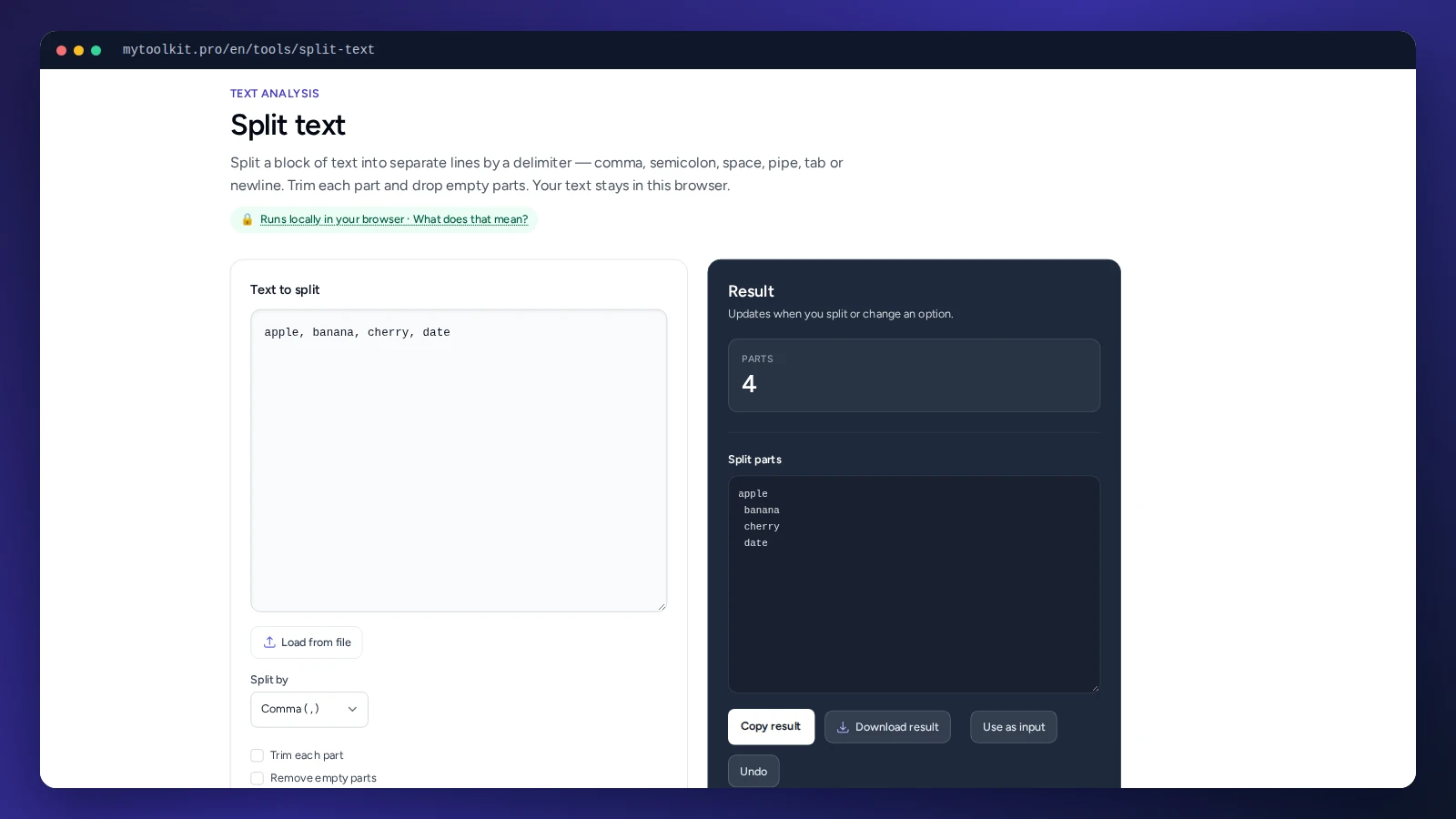
Split the line apple, banana, cherry, date by comma and you get four lines: apple, banana, cherry and date. Three of them start with a space, because the space after each comma belongs to the next item. Most surprises with Split text come from the same thing: the tool cuts exactly at the separator and keeps everything else. Once you know that, a few settings get you the parts you want.
Turn a list into one item per line
- Paste your text into Text to split. If you want to try it first, press one of the Try an example buttons: Comma list, Semicolon list or Words.
- Choose the separator in Split by. The default is Comma ( , ).
- If the parts need cleaning, tick Trim each part, Remove empty parts or both. Both are off by default.
- Check the Parts count and the Split parts box under Result, then press Copy result. The status "Result copied to clipboard." confirms the copy.
The result updates live as you type, change the separator or tick a checkbox. The Split button runs the same operation. Clear empties the input and resets Parts to 0.
The tool does not sort, deduplicate, add or reword anything. The parts appear in their original order, one per line.
Get rid of stray spaces and empty lines
These are the two most common complaints after a split, and each has its own checkbox.
Trim each part removes whitespace at the start and end of every part. This fixes the leading spaces in apple, banana. It does not touch spaces inside a part, so New York stays New York.
Remove empty parts drops parts that are empty or contain only whitespace, and lowers the Parts count. It works on its own, but the parts it keeps retain their surrounding spaces.
Here is the input a, ,b, split by comma with each combination (quotes show the exact part content):
| Options ticked | Resulting parts | Parts |
|---|---|---|
| None | " a", " ", "b", "" | 4 |
| Trim each part | "a", "", "b", "" | 4 |
| Remove empty parts | " a", "b" | 2 |
| Both | "a", "b" | 2 |
Empty parts come from two places:
- Two separators in a row:
a,,bgives 3 parts, with an empty line in the middle. - A leading or trailing separator:
a,b,gives 3 parts, and the last line is empty.
The tool keeps these empty parts unless you ask it to drop them, so the part count always reflects every separator in the text.
Match the separator to where the text came from
| Split by option | Splits on | Typical source |
|---|---|---|
| Comma ( , ) | , |
Tag lists, email lists, simple comma-separated lines |
| Semicolon ( ; ) | ; |
CSV-style exports that use semicolons instead of commas |
| Space | one space character | Words in a sentence |
| Pipe | the vertical bar character | Pipe-separated logs or exports |
| Tab | tab character | Cells copied from a spreadsheet |
| Newline | line break | Text that already has one item per line |
For pipe-separated text, choose Pipe ( | ) in Split by.
In every case the match is literal and case-sensitive, like JavaScript's String.prototype.split with a string separator.
Cells copied from a spreadsheet
When you copy cells from a spreadsheet, tabs separate the columns and line breaks separate the rows. The IANA registration for tab-separated values does not allow tabs inside fields. Choose Tab, and a, tab, b, tab, c gives three parts.
Splitting a copied row on Tab works well as long as no cell contains a line break or quotes. Spreadsheet clipboard text is not always strict TSV: such cells can arrive wrapped in quotes, and Split text keeps those quotes and line breaks as they are.
Words in a sentence
Space means exactly one space character, not "any whitespace". Two spaces in a row produce an empty part between them, so a b (with two spaces) gives 3 parts: a, an empty part and b. Tick Remove empty parts to drop them, or collapse repeated spaces first with Whitespace normalizer.
Lines, including Windows line endings
Before splitting, the tool converts Windows line endings (CRLF) and lone CR characters to LF. Pasted Windows text therefore splits cleanly: a,b and c,d on two Windows lines become exactly a,b and c,d. With Newline and no checkbox ticked, the output is the same as the input, only with normalised line endings. Add Remove empty parts to drop blank and whitespace-only lines.
Quoted CSV needs a real parser
In CSV, a field that contains a comma, a double quote or a line break should be wrapped in double quotes (RFC 4180). Split text ignores quotes. It cuts at every comma, so this line:
"Smith, John",42
becomes three parts:
"Smith
 John"
42
RFC 4180 also says that spaces are part of a field and should not be ignored. That is why the tool keeps them unless you tick Trim each part.
For CSV data with quoted fields, use CSV to JSON, which reads the quoting. Split text is meant for simple lists where the separator never appears inside an item.
What the tool will not do, and other edge cases
- One single-character separator at a time. There is no custom separator, no multi-character separator such as " and ", no regular expression and no splitting on several separators at once. As a workaround, first turn every separator into one supported character with Find and replace, then split.
- The input field accepts up to 1,000,000 characters.
- Text that does not contain the separator gives 1 part: the whole text. Empty input gives 0 parts.
- Input made only of spaces is not treated as empty. Split by comma, it counts as 1 part unless you tick Remove empty parts.
- Parts counts parts, not lines. If you split by comma and a part contains a line break, that part spans several lines in Split parts. The number of visible lines can then be higher than Parts.
- Text that looks like HTML or a script is treated as plain text. It is shown as text and never run or rendered.
- Emoji and non-Latin characters are safe. Every separator in the list is a single ASCII character, so it cannot cut a character in half. MDN describes that risk for an empty separator, which this tool never uses.
After the split
Once you have one item per line, you can:
- put them in order with Sort lines
- drop repeats with Duplicate line remover
- shuffle them with List randomizer
- count them with Lines, words & characters counter
- put them back on one line with Join lines
If your text already has one item per line and you only need to drop blank lines, Remove empty lines does that directly. In Split text, Newline with Remove empty parts gives a similar result and always drops whitespace-only lines too.
Privacy
The splitting runs in your browser as plain JavaScript string operations. No text is uploaded or stored. Nothing leaves the page unless you copy or download it yourself.
FAQ
Why do I get empty lines after splitting?
An empty line appears wherever two separators are next to each other, or where the text starts or ends with a separator. For example, a,,b and a,b, each give 3 parts, one of them empty. Tick Remove empty parts to drop them.
How do I get rid of the spaces after each comma?
Tick Trim each part. It removes whitespace at the start and end of every part but leaves spaces inside a part alone. Remove empty parts on its own does not remove these spaces.
How do I split words separated by more than one space?
Choose Space in Split by and tick Remove empty parts. Space splits on a single space, so every extra space creates an empty part, and Remove empty parts removes those.
Does splitting by Newline work with Windows (CRLF) line endings?
Yes. CRLF and lone CR line endings are converted to LF before the split, so you do not get stray carriage-return characters at the end of each part.
Can I split on several delimiters at once or on a word like " and "?
No. The tool splits on one single-character separator from the Split by list. For mixed separators or a word separator, first replace them with one supported character in Find and replace, then split.
Does it handle CSV fields with commas inside quotes?
No. The split is literal and ignores quotes, so "Smith, John",42 becomes three parts instead of two. For quoted CSV, use CSV to JSON.
Why does the Parts number differ from the number of lines I see?
Parts counts parts, not lines. When you split by something other than a line break and a part contains a line break, that part spans several lines in Split parts.
How do I join the parts back into one line?
Copy the result with Copy result and paste it into Join lines. There you can join the lines with the separator you want.