
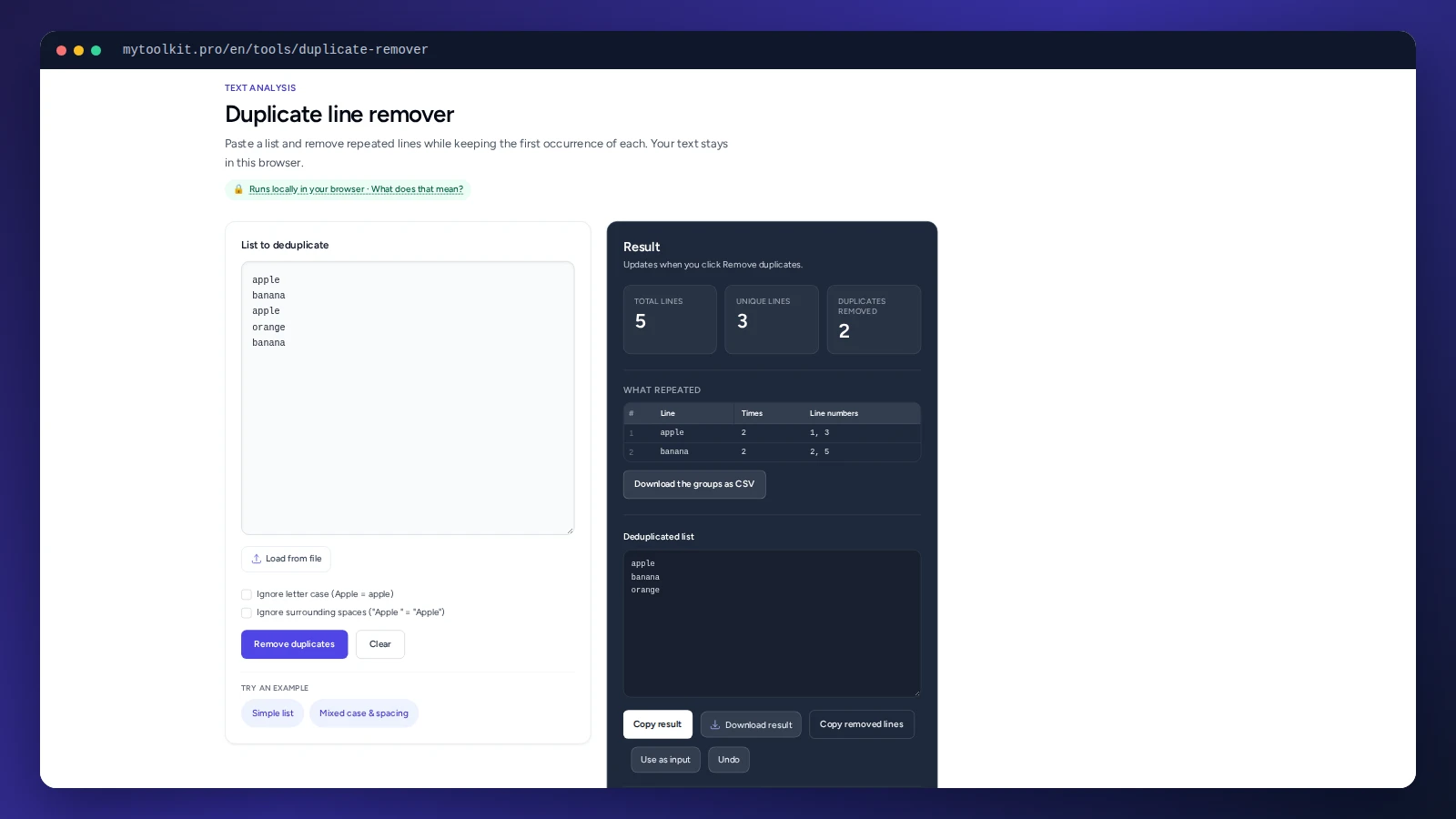
Duplicates rarely come alone, and where they sit can matter as much as removing them. If an address appears on lines 4 and 912 of a merged mailing list, an export may have run twice. If two product codes you expected to be different merge, there may be a typo upstream. The Duplicate line remover keeps the first occurrence of every line in its original position and drops the later copies. It also lists each repeated line with its count and line numbers.
Cleaning a merged mailing list
Take this list. The fourth line ends with a space you cannot see:
[email protected]
[email protected]
[email protected]
[email protected]
[email protected]
[email protected]
- Paste it into List to deduplicate, one address per line.
- Click Remove duplicates. Matching is exact by default, so only the second [email protected] is removed: Total Lines 6, Unique Lines 5, Duplicates Removed 1. “[email protected]” and the address with the trailing space count as separate lines.
- Tick Ignore letter case (Apple = apple) and Ignore surrounding spaces ("Apple " = "Apple"). The result is recalculated as soon as you change an option.
- Deduplicated list now holds three lines, and Unique Lines reads 3 and Duplicates Removed 3:
[email protected]
[email protected]
[email protected]
- Click Copy result. The status reads “Result copied to clipboard.”
What repeated shows where the copies were, so you can fix them in the source file:
| Line | Times | Line numbers |
|---|---|---|
| [email protected] | 3 | 1, 3, 4 |
| [email protected] | 2 | 2, 6 |
Clear empties the box. To try the tool without your own data, use the buttons under Try an example. Simple list loads apple, banana, apple, orange, banana, and the result is apple, banana, orange (Total Lines 5, Unique Lines 3, Duplicates Removed 2).
Deciding what counts as the same line
By default the comparison is exact, so “Apple”, “apple” and “Apple ” are three different lines. The two options relax that:
| Lines compared | Default | Letter case option | Surrounding spaces option | Both options |
|---|---|---|---|---|
| Apple / apple | different | same | different | same |
| Apple / “Apple ” | different | different | same | same |
| Apple / Ap ple | different | different | different | different |
Ignore letter case (Apple = apple) compares the lowercase form of each line, produced by JavaScript's toLowerCase(). That function is locale-insensitive, so the comparison is a plain lowercase match with no language-specific casing rules.
Ignore surrounding spaces ("Apple " = "Apple") removes whitespace at the start and end of a line before comparing. Spaces inside the line are never collapsed.
With both options on, the outer spaces are removed first and the line is then lowercased. The Mixed case & spacing example under Try an example loads Apple, apple, “APPLE ” (with a trailing space) and Banana. With both options on, the result is “Apple” and “Banana” (Unique Lines 2). With only the letter case option on, “APPLE ” stays as a separate line because of its trailing space.
The first spelling always wins
The options only change how lines are compared. The line that is kept is always the first occurrence, exactly as written, with its original case and spacing. With the surrounding spaces option on, this input:
 Apple
Apple
Banana
becomes:
 Apple
Banana
The leading space in “ Apple” stays because that version came first. To keep a different spelling, move it to the top of the list before you run the tool.
Lines that look the same but stay separate
- A space at the start or end of a line is the most common cause. Turn on the surrounding spaces option.
- Spaces inside a line always count. “Ap ple” never matches “Apple”, and two spaces between words do not match one.
- A non-breaking space inside a line, which is common in text copied from web pages or word processors, does not match an ordinary space, even with the surrounding spaces option on.
- Lines that contain only spaces differ by the number of spaces unless the surrounding spaces option is on. With it on, they all become empty and merge with genuinely empty lines.
- An accented letter can be stored in two Unicode forms. The tool does not normalise Unicode, so a precomposed é (U+00E9) and an e followed by a combining acute accent (U+0301) stay as different lines, even though UAX #15 defines them as canonically equivalent.
Blank lines, the final newline and Windows line endings
Blank lines are compared like any other value. Several empty lines collapse to the first one, which keeps its position: A, blank, B, blank, A becomes A, blank, B (total 5, unique 3). To drop blank lines entirely, use the tool to remove empty lines.
If your text ends with a newline, the empty line after it counts as one more line. That is why Total Lines can be one higher than you expect, and why one blank line may remain at the end of the result.
Windows (CRLF) and old Mac (CR) line endings are converted to LF before processing. The output uses LF only, and line numbers count logical lines.
The What repeated table, column by column
The What repeated table has one row per line that appeared more than once. Line shows the text of the first occurrence, Times how often it appeared, and Line numbers where each copy sits in your list, counting from 1. A “#” column on the left only numbers the rows of the table. The positions in your list are in Line numbers.
Rows are sorted by count, highest first. Rows with the same count keep the order in which the lines first appeared. For x, y, y, x, x, “x” (3 times) comes before “y” (2 times). If no line repeats, the table is replaced by “No repeated lines — every line is unique.”
At most 20 rows are shown. When there are more, a note such as “Showing the first 20 of 35 repeated lines.” appears. The 35 counts distinct repeated values, not removed copies, so the number of removed copies can be much higher.
Cells that are too wide for the column are cut off. For lines longer than 40 characters, hovering over the cell shows the full text. For the complete text of every row, use the CSV export.
Getting the repeats out of the tool
As a spreadsheet
Download the groups as CSV saves a file named duplicate-groups.csv. The button appears only when at least one line repeated. The file contains every group, including any beyond the 20 shown in the table, and starts with the header row Line,Times,Line numbers.
The file follows RFC 4180. Rows are separated by CRLF (Windows-style) line breaks. Any field that contains a comma, a double quote or a line break is wrapped in double quotes, and quotes inside it are doubled. A Line numbers value such as 1, 3, 6 contains commas, so it is quoted, and spreadsheet apps read it as one cell. For the input a, b, a, c, b, a the file reads:
Line,Times,Line numbers
a,3,"1, 3, 6"
b,2,"2, 5"
As plain text
Copy removed lines copies one line for each dropped copy. For the same a, b, a, c, b, a input you get:
a
a
b
The order follows the groups (most frequent first), not the original positions of the removed lines. Each entry is written as the text of the first occurrence, not the variant that was actually removed. In the mailing list example above, the removed “[email protected]” is listed as “[email protected]”. After copying, the button briefly changes to a check mark and Copied.
Why the counters can lag behind your edits
The result is recalculated when you click Remove duplicates or Clear, change either option, load an example, or click Copy result, which refreshes the result before copying it. Typing in the box alone refreshes nothing, so after an edit the counters, the table and the CSV download still show the last run.
Copy removed lines reads the text currently in the box but does not refresh the counters, the table or the CSV, so after an edit its output can disagree with them. Click Remove duplicates first, and everything you copy or download will match.
One pass, top to bottom
The tool reads the list once, from top to bottom. For each line it builds a comparison key: the raw line, trimmed and/or lowercased if those options are on. The key is checked against a JavaScript Set. If the key is new, the line is kept. If it has been seen before, the line is dropped.
The Set only records which keys have been seen. Kept lines are collected in input order, so first occurrences stay where they were. Because Set lookups are fast, the time grows roughly in proportion to the number of lines.
The counters follow from this. Total Lines is the number of lines after splitting, Unique Lines is the number of lines kept, and Duplicates Removed is the difference. Running the tool again on its own output removes nothing.
Large lists and neighbouring tasks
The input box accepts up to 1,000,000 characters. This limit belongs to the browser text field, which cuts off longer pasted text. The algorithm has no other size cap.
The tool keeps your original order. If you want alphabetical output instead, sort the lines. To count how often individual words appear rather than whole lines, use the word frequency counter. To check how many lines a text has without removing anything, use the lines counter.
Privacy
All processing happens in client-side JavaScript in your browser. No text is uploaded or stored, and the CSV file is generated on your device. The tool page shows the Runs locally in your browser badge, so you can paste internal lists into the Duplicate line remover without sending them anywhere.
FAQ
Why are 'Apple' and 'apple' both still in my result?
Matching is exact by default, so letter case matters. Tick Ignore letter case (Apple = apple) to treat the two as the same line. The one that appears first is kept.
Why do two lines that look identical survive deduplication?
Usually one of them has a space at the start or end, and Ignore surrounding spaces ("Apple " = "Apple") fixes that. If they still survive, one may contain a non-breaking space inside the line, or they may use different Unicode forms of an accented letter. The tool does not normalise either. Spaces inside a line are never ignored.
Do blank lines count as duplicates?
Yes. Empty lines are compared like any other value, so several of them collapse to the first one, which keeps its position. To drop all blank lines, use the tool to remove empty lines.
I edited the list but the result did not change. Why?
Typing does not refresh the result. Click Remove duplicates again, or change an option, and the result, counters, table and CSV are recalculated. Copy removed lines reads the current box without refreshing anything, so run the tool first to keep its output in line with the counters.
Can I export the list of repeated lines with their counts?
Yes. When at least one line repeated, Download the groups as CSV saves duplicate-groups.csv with every repeated line, its count and its line numbers, including groups beyond the 20 shown in the table. Copy removed lines copies the dropped copies as plain text.
Is my list uploaded anywhere, and is there a size limit?
Nothing is uploaded. Everything runs in your browser and nothing is stored. The input box accepts up to 1,000,000 characters, and the browser cuts off longer pasted text.