
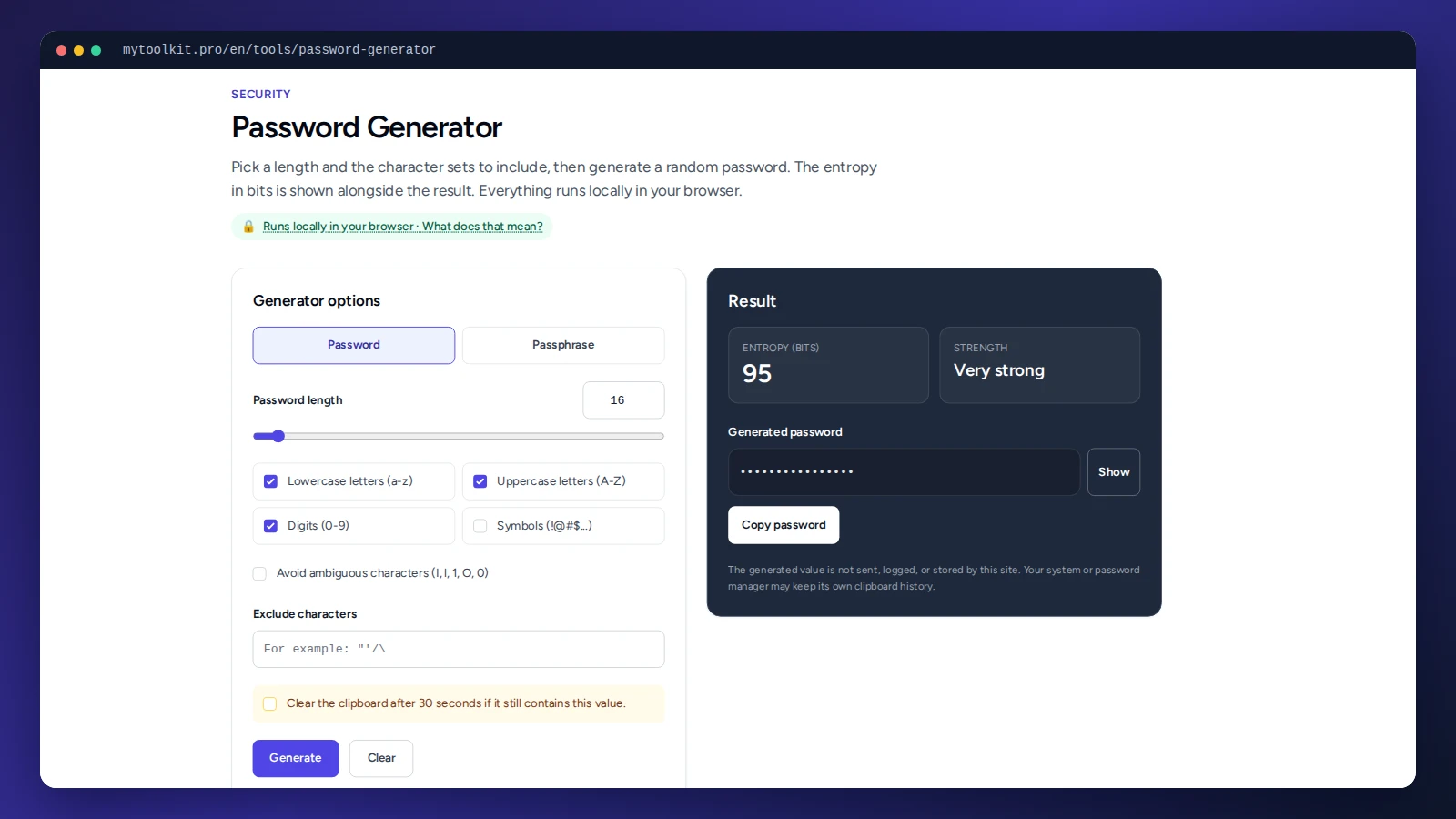
The streaming app on the living-room TV wants your account password. It shows a grid of letters that you move through with the arrow keys on the remote. Capitals sit behind one button and digits and symbols behind another, so every switch costs several presses. Your password manager is on your phone, and the 20-character random string it holds was never meant to be typed like this.
Random passwords are made to be pasted. Type one on a console pad, or read it out over the phone to a family member, and you get typos, lost minutes and arguments about whether that was a zero or a capital O. You can keep the password random and still make it much easier to enter. The Password Generator has a few settings that help, and you can measure what each one costs.
Characters that get misread: I, l, 1, O and 0
The Avoid ambiguous characters (I, l, 1, O, 0) option removes exactly those five characters from every set you have selected. Lowercase letters go from 26 to 25, uppercase from 26 to 24 and digits from 10 to 8. The 25 symbols stay as they are.
The option removes nothing else. Pairs that some fonts or listeners confuse, such as 5 and S, 2 and Z, or "rn" that looks like "m", stay in the pool. If they cause trouble on your screen, type them into Exclude characters. That field is case-sensitive, so "a" removes only "a" and not "A". If an exclusion empties a whole selected set, the tool stops with the message "The exclusions remove every character from a selected set."
The cost is small. With lowercase, uppercase and digits, the pool shrinks from 62 to 57 characters. For a 16-character password, the tool's estimate drops from 95 bits to 93 bits.
Fewer keyboard switches, more characters
On-screen and remote-control keyboards punish variety. Every move between lowercase, capitals and symbols costs extra presses. A password of lowercase letters only, or lowercase plus digits, stays on one or two layers. You make up for the smaller pool by adding a few characters.
The figures below use the tool's own formula: length × log2(pool size), rounded to whole bits. All of them have ambiguous characters avoided. They are the tool's estimate for a randomly generated value, not a measured cracking time.
| Character sets | Pool | Length | Estimated bits | Label |
|---|---|---|---|---|
| Lowercase only | 25 | 16 | 74 | Very strong |
| Lowercase only | 25 | 20 | 93 | Very strong |
| Lowercase + digits | 33 | 12 | 61 | Very strong |
| Lowercase + digits | 33 | 16 | 81 | Very strong |
| Lowercase + uppercase + digits | 57 | 16 | 93 | Very strong |
For comparison, 12 lowercase characters without the ambiguity option come to 56 bits, which the tool labels "Strong". Twenty lowercase letters get the same estimate as a 16-character mixed-case password, and they are much quicker to enter with a remote.
For a TV or console, a sensible setup is to keep Lowercase letters (a-z), add digits if you like, untick the rest and raise the length.
Some sites get in the way. NIST SP 800-63B-4 states that verifiers "SHALL NOT impose other composition rules (e.g., requiring mixtures of different character types)", and OWASP gives the same advice. Many services still demand a capital or a symbol. If yours does, tick that set. The generator guarantees at least one character from every set you select, so the password satisfies a "must contain a capital" or "must contain a symbol" rule.
Tick Symbols (!@#$...) only when a site requires it, because symbols are usually the slowest keys to reach on an on-screen keyboard. If a site rejects a particular symbol, add that character to Exclude characters.
Words are easier to dictate than characters
Reading out "lowercase q, digit eight, lowercase x" is slow and easy to get wrong. Whole words are not. In Passphrase mode, the tool draws each word independently from a fixed list of 64 English words, which gives 6 bits per word. Words can repeat, and there are no capitals or digits, so there is nothing to spell out.
The numbers are modest. Six words give 36 bits, labelled "Strong", and the maximum of 10 words gives 60 bits. The well-known Diceware and EFF long lists have 7,776 words, so each of their words adds about 12.9 bits (EFF, Diceware). With a 64-word list you need roughly twice as many words for the same strength.
For an important account, set Number of words to 10. Or use a lowercase-plus-digits password from the previous section, which gets more bits from fewer keystrokes: 12 characters already reach 61 bits.
The Word separator can be a hyphen, a space or a dot, and a space is the easiest to dictate. OWASP tells sites to "allow usage of all characters including unicode and whitespace", and NIST says verifiers should accept the space character. Some login forms and on-screen keyboards still handle spaces badly, so if a passphrase with spaces is rejected, generate a new one with a hyphen.
The strength comes from the random draw, not from unusual words. Do not swap a word for one you like better: the bit count assumes every word was chosen at random, and a word you picked yourself was not.
What the strength label can and cannot tell you
The label follows fixed thresholds: under 28 bits is "Weak", 28 or more is "Fair", 36 or more is "Strong" and 60 or more is "Very strong". For anything that protects money or email, treat 60 bits as a minimum, not a goal.
The bit figure holds only because every character or word is chosen at random. Daniel Wheeler's zxcvbn paper explains why estimates based on the character set overstate passwords that people choose. If you edit the result to make it easier to remember, for example by adding your birth year, the number no longer describes what you have. The formula also ignores the rule that every selected set appears at least once, so it slightly overstates the true figure.
From the generator to the other device
The Generated password field is masked by default. Every change to an option generates a new password, so save the value before you adjust anything else. A safe order is:
- Press Copy password to put the value on the system clipboard.
- Paste it into your password manager and save the entry, so a typo on the device never costs you the only copy.
- Type it on the TV or console while reading from the manager. If you have to read it from the generator, press Show, and remember that anyone in the room, or watching a screen share or recording, can read it too.
- Press Hide to mask the value again as soon as you are done.
The option Clear the clipboard after 30 seconds if it still contains this value. wipes the clipboard only if it still holds that exact value and the browser lets the page read the clipboard. If reading is blocked, the option leaves the clipboard alone without a warning. Clipboard history in your operating system or password manager may also keep its own copy, so do not rely on this option alone.
To get a long password onto a phone without typing it, you can turn it into a code with the QR Code Generator and scan it. The QR image contains the password in readable form, so do not save, print or share it.
Privacy
The password is generated entirely in your browser with crypto.getRandomValues, a cryptographically strong source, unlike Math.random. The site does not send, log or store the value. The only way it leaves the page is a clipboard copy that you make yourself.
FAQ
Do I need to avoid ambiguous characters if I always paste the password?
No. The option only helps when a person reads or types the password. The cost is small, though: about 2 bits for a 16-character password with letters and digits. If you might ever have to type it, it is worth turning on.
Why does a six-word passphrase show Strong while a 16-character password shows Very strong?
Each passphrase word comes from a 64-word list and adds only 6 bits, so six words give 36 bits. A 16-character password from lowercase, uppercase and digits gives about 95 bits. The tool page has a fuller table of entropy for common settings.